How to Fix Google Chrome Crash Problem

A new version of Google Chrome which is much more experimented than the previous versions. I downloaded this new version and I got amazed by the new changes I saw. Speed has increased, no crashing problem, fast loading, fast search.

How To Auto Translate Text In Google Chrome

It is common to come across the Web pages published in unfamiliar languages while surfing the World Wide Web. For example, if you are searching for a Chinese company, the chances are high that its Web site will be totally in the local language.

How to Fix the Safari Privacy Leak by Disabling Autofill

If you're using Safari right now, you could be open to a malicious attack via your autofill feature, which is enabled by default.[1] The autofill feature on the Safari could be letting a malicious site find out your personal details, such as your full name, where you work and live down to the city and state or province, and your email address.

How to Login To Multiple Google Accounts

After adding the extension to Chrome, click the new icon in the top right corner of the browser window, then on options.

How to add Auto-hide status bar in Mozilla Firefox

Visit https://addons.mozilla.org/ in your Firefox browser. Click on the yellow (may turn green in future) Add to Firefox button to install the autoHideStatusbar add-on.

Thursday, November 24, 2011

How To Stop Google Chrome Crashes

First, reboot your computer. When you encounter a crash of the browser for the first time, refresh the browser by restarting the PC. If the crash or error repeats, then run a reinstallation process of Google Chrome. Select START> Control Panel> Add/ Remove Programs. The names of the applications installed in your computer will appear; among the list, find Google Chrome Browser and then press REMOVE or UNINSTALL. Follow through with the uninstallation wizard and restart computer afterwards. Install the browser by downloading it from the Google website. Next, run the new browser and take out the add-ons or plug-ins that could be causing the errors. Open Google Chrome and type "chrome://extensions" on the address bar. Click "uninstall" on those you do not really need. Restart your computer for the changes to take effect.


Related Post :-
How to view javascript errors in firefox
How to fix Network & Internet connection problems in Windows 7
How to Enable JavaScript in Internet Explorer ?

S

Wednesday, November 23, 2011

How to view javascript errors in firefox

Almost every web browser has some sort of error detection mechanism. And not only error detection, these web browsers can also show you the errors, which helps in rectifying them. As web browsers are the compilers and interpreter of web programming language such as javascript, html or css, any sort of error in using markups or functions must be detected before putting a website live.  And it is efficiently done by almost every web browser.
Firefox has an inbuilt Javascript error detection mechanism. It not only detects Javascript errors but also XML or CSS or other web language errors. It also allows you to view those errors in real time. You don’t need any sort of configuration in order to view those errors, as told earlier that the functionality is inbuilt, you can view those errors directly from within the firefox console.


Here are 2 methods to view javascript errors in firefox error console
  1. Open firefox –> From “Tools” menu –> Select “Error Console”
  2. Alternatively you can also press "Ctr + Shift + J" key combination

     Source:-http://www.trixya.net/index.php/internet/how-to-view-javascript-errors-in-firefox

    Related Post :-
    How to fix Network & Internet connection problems in Windows 7
    How to Enable JavaScript in Internet Explorer ?
    Improve browser speed in Internet Explorer 6.0.

    Tuesday, November 22, 2011

    How to fix Network & Internet connection problems in Windows 7

    If you find that your internet connection, in Windows 7 or Vista, has suddenly stopped working or that you are facing certain Network problems, here are a few trouble-shooting steps you may want to try:
    1. IPConfig is a tool built into Windows,that displays all current TCP/IP network configuration values and refreshes Dynamic Host Configuration Protocol DHCP and Domain Name System DNS settings. You can access this tool via the command line. If you have a bad IP address, then renewing your IP address this way may help solve your internet problems.


    Type cmd in start search and press Ctrl-Shift-Enter. If you wish, just out of curiosity, you may type ipconfig and hit Enter, to view the status of the computer’s Internet Protocol or IP address.
    Type ipconfig /release to let go of the current IP address.
    Next type ipconfig /renew to obtain a new IP address.
    If you get an error Message When You Run the “Ipconfig /Renew” Command see KB810606.
    If you recurrently face this problem, then you can have it renewed on every start-up, by creating the following .bat file and placing it in your startup folder.
    Open notepad and type:
    ipconfig /release
    ipconfig /renew

    Save it as, say, iprenew.bat file.
    2. Frequently, internet connection problems can also be traced to a corrupted DNS cache. Resetting or Flushing this cache is an easy fix to many of these problems. This is how to clear the DNS cache in Windows 7 or Vista.

    Start > All Programs > Accessories > Command Prompt. Right click on it and ‘Run As Administrator’. Type the following and hit enter:
    ipconfig /flushdns
    You should be able to see a confirmation dialog window:
    Windows IP Configuration. Successfully flushed the DNS Resolver Cache.
    Next type ipconfig /registerdns and hit Enter.
    This registers any DNS records that you or some programs may have recorded in your Hosts file.
    Just in case you are interested, to view the complete syntax for this command type ipconfig /help and hit Enter!
    3. The Network & Internet Diagnostic & Repair Tool in Windows 7 & Vista will help you identify the potential issues preventing network connectivity, and it automatically takes appropriate steps toward correcting them. If a computer on the network loses Internet connectivity, you can graphically see which connection is down and then use Network Diagnostics to help determine the cause of the problem and find possible solutions.

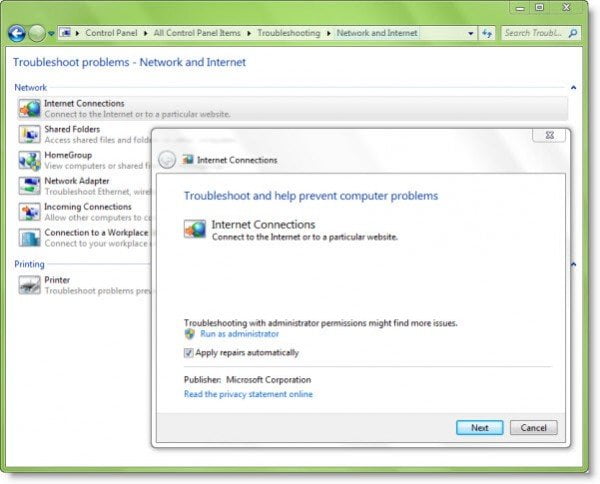
     To access it, open Control Panel > Network & Sharing Center. In the lower part, click on Troubleshoot Problems. From the windows which opens, you can select Internet Connections or any other issue you want to troubleshoot and repair.

    Related Post Internet Browser:-
    How to Enable JavaScript in Internet Explorer
    Fix Firefox 3 Without Reinstalling
    Fix a Slow Internet Connection


    Source:-http://www.thewindowsclub.com/how-to-fix-network-internet-connection-problems-in-windows

    Monday, November 21, 2011

    How to Enable JavaScript in Internet Explorer ?


    Follow the steps below to enable JavaScript in Internet Explorer


    Step 1

    Access Internet Explorer by opening it up on your computer. If it isn't already installed, visit the Microsoft Web site to download the latest version (see Resources below).


    Step 2

    Go to 'Tools' on the task bar and click on it.


    Step 3

    Select the 'Internet Options' heading.


    Step 4

    Locate the tab labeled 'Advanced' and click on it.


    Step 5

    Scroll through the list of settings until you see the 'Java' category.


    Step 6

    Use your mouse to place a check in the box beside the only setting option under 'Java.' This setting option is 'Use JRE 1.5.0_05.'


    Step 7

    Click 'OK.'


    Step 8

    Re-start your computer. Your computer must be re-started in order for the change you just made to take effect.


    Related Post :-
    How To Fix Error 651 internet Browser
    How to Fix 504 Gateway Timeout Error
    How To Stop Google Chrome Crashes

    Fix Firefox 3 Without Reinstalling

    My primary browser is Mozilla Firefox v3.0.1. The reason I champion that particular browser over others is because it has the most plugins available. If there is anything on the internet that can be done in a browser, chances are it will happen in Firefox first.
    Plugins, while a blessing, can also be a curse. As cool as it is that you have tons of nifty add-ons to choose from, some of these add-ons may screw up your browser. How the screw-up occurs could be in any number of ways, but you know when you’re browser is screwed up.
    Firefox browser problems don’t happen often, but when they do you can fix just about any of them by creating a new profile.


    Here’s how:
    Close the browser first.
    Do a run dialog and type firefox -P, then click OK.

     This is what you will see by default:

     
    If you want to "start over", delete the profile and all files associated with it. Note: You will lose all your bookmarks and browser settings when you do this. (For bookmarks you can retrieve them if you have Foxmarks installed.) Add-ons will remain installed.
    When you create a brand new profile, Firefox will treat it as if you’ve just installed the browser for the first time.
    If you’re not sure whether you want to delete the old profile, just create a new one. Firefox allows multiple profiles to be installed. From there you can troubleshoot to see if it fixed any issues you may have present.
    For the add-ons present, they will "see" it also as a new installation so you can do additional troubleshooting that way.

    Source:-http://www.pcmech.com/article/how-to-fix-firefox-3-without-reinstalling/

    Related Post :-
    Fix a Slow Internet Connection
    Internet Explorer 10 pros cons
    How to Fix Runtime error 814

    Saturday, November 19, 2011

    Fix a Slow Internet Connection

    A slow Internet connection can be extremely frustrating when you are working online. You can contact a computer technician, but they will most likely charge you a large amount of money to just look at your computer. To avoid repair costs, there are some simple tricks you can try on your own to fix a slow Internet connection.


    Run a virus scan on your computer. If your virus and spyware protection are up-to-date, the scan will detect any offenders and remove them from your computer.

    Unplug your modem and wait a minute. Many times resetting a modem will fix the slow Internet connection.

    Perform a system restore on your computer. This allows you to undo any harmful changes that you have made to your computer that could be causing the slower Internet.

    Free up space on your hard drive. Routinely removing temporary Internet files and programs that you no longer use will help keep your computer running efficiently.

    Test your connection. Many Internet providers will allow you to use their site to check to make sure that there is not a problem with your connection.

    Source:-http://www.ehow.com/how_2050279_fix-slow-internet-connection.html

    Related Post :-
    Internet Explorer 10 pros cons
    How to Fix Runtime error 814
    How to Fix 404 Page Not Found Error

    Friday, November 18, 2011

    Internet Explorer 10 pros cons

    Internet Explorer 10 Platform Preview allows you to test the technology in Microsoft's upcoming browser.


    See the future of IE
    This preview only works in Windows 7, and is essentially just a window that will display web pages. To navigate to a page, press Ctrl + O and enter the URL you want. It's hardly user friendly, but it's not supposed to be. Internet Explorer 10 Platform Preview is meant for web developers and anyone interested in testing and debugging the technology.

    HTML 5
    You can view various test sites with Internet Explorer 10 Platform Preview, especially designed to show off IE 10's HTML 5 performance, like the all new Fish Bowl site. If you want the most up-to-date version of IE, you can download Internet Explorer here.

    Internet Explorer 10 Platform Preview shows off the early development of Microsoft's popular browser.

    Pros
    Shows off native HTML support
    Tools for developers

    Cons
    Not useful as a browser!

    Related Post Internet Browser:-
    fix unexpected installation error 203 in Firefox
    operation aborted in internet explorer
    How to Make Internet Explorer 7 the Default Browser